Writing & formatting
Long-text fields use a rich editor that always writes clean Markdown behind the scenes — so you focus on the words, not the syntax.
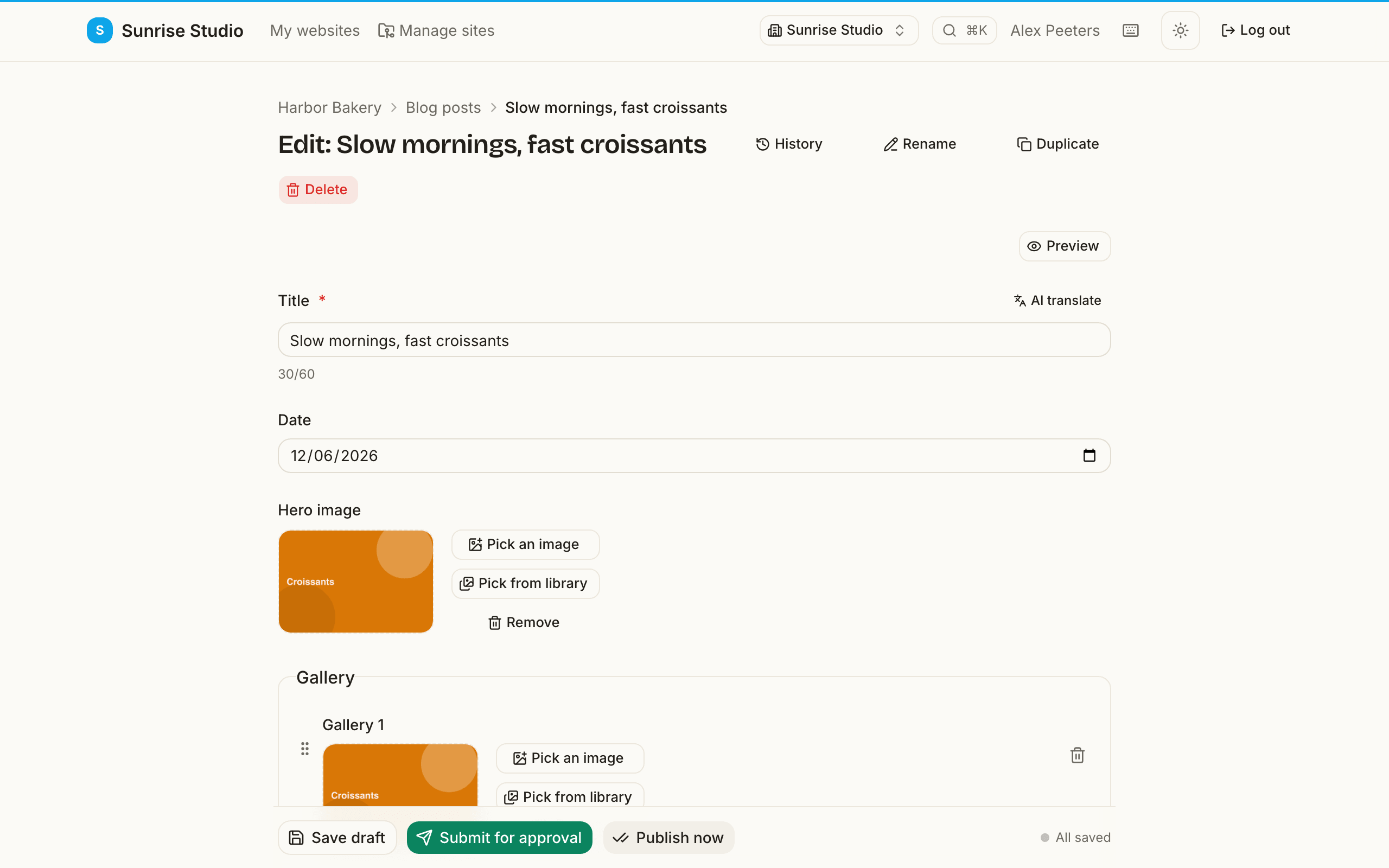
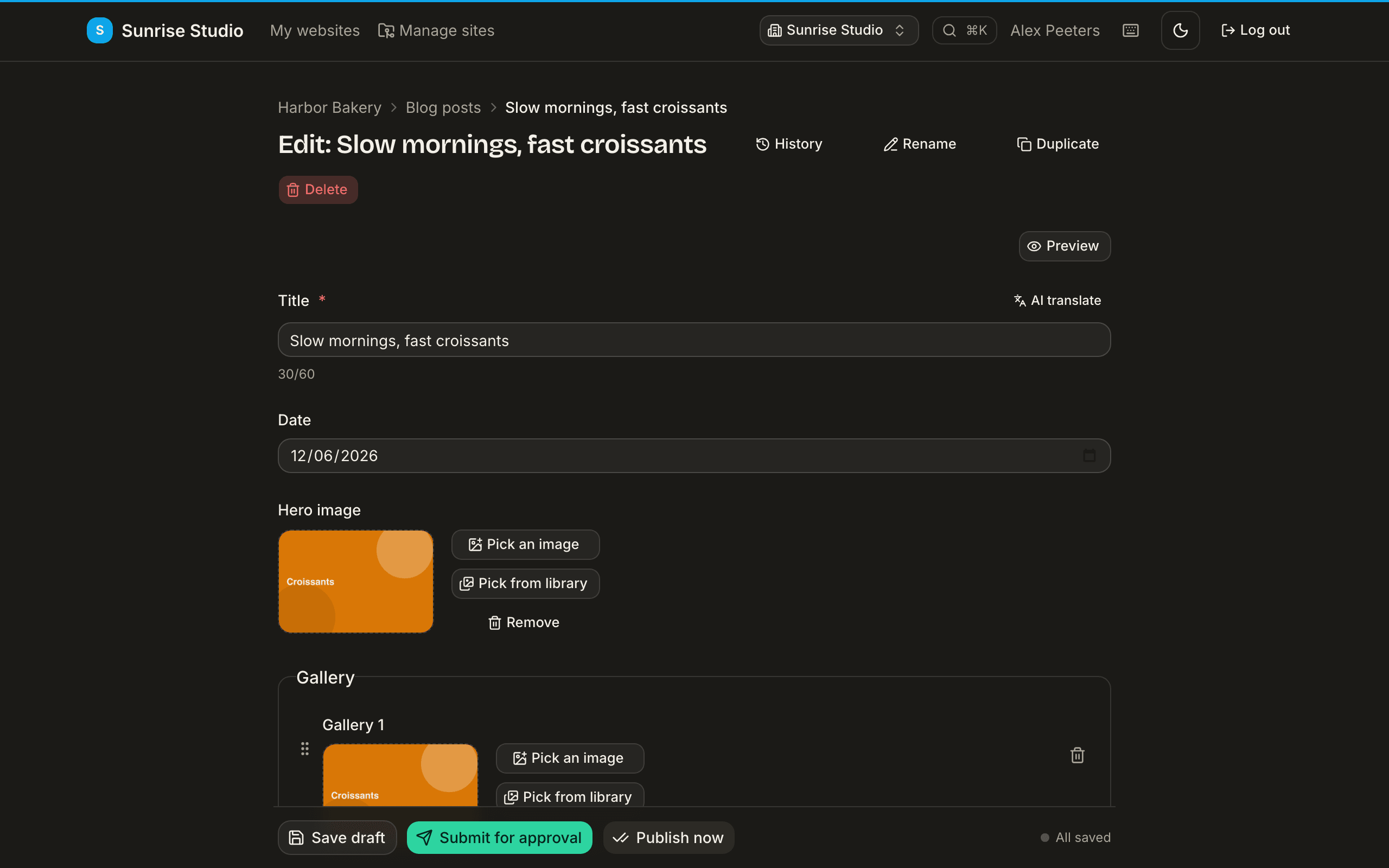
Open an entry (or click New) and you get a form built from your site's content model. Text fields like a body or introduction open in the rich editor. Here's how to get the most out of it.
The basics
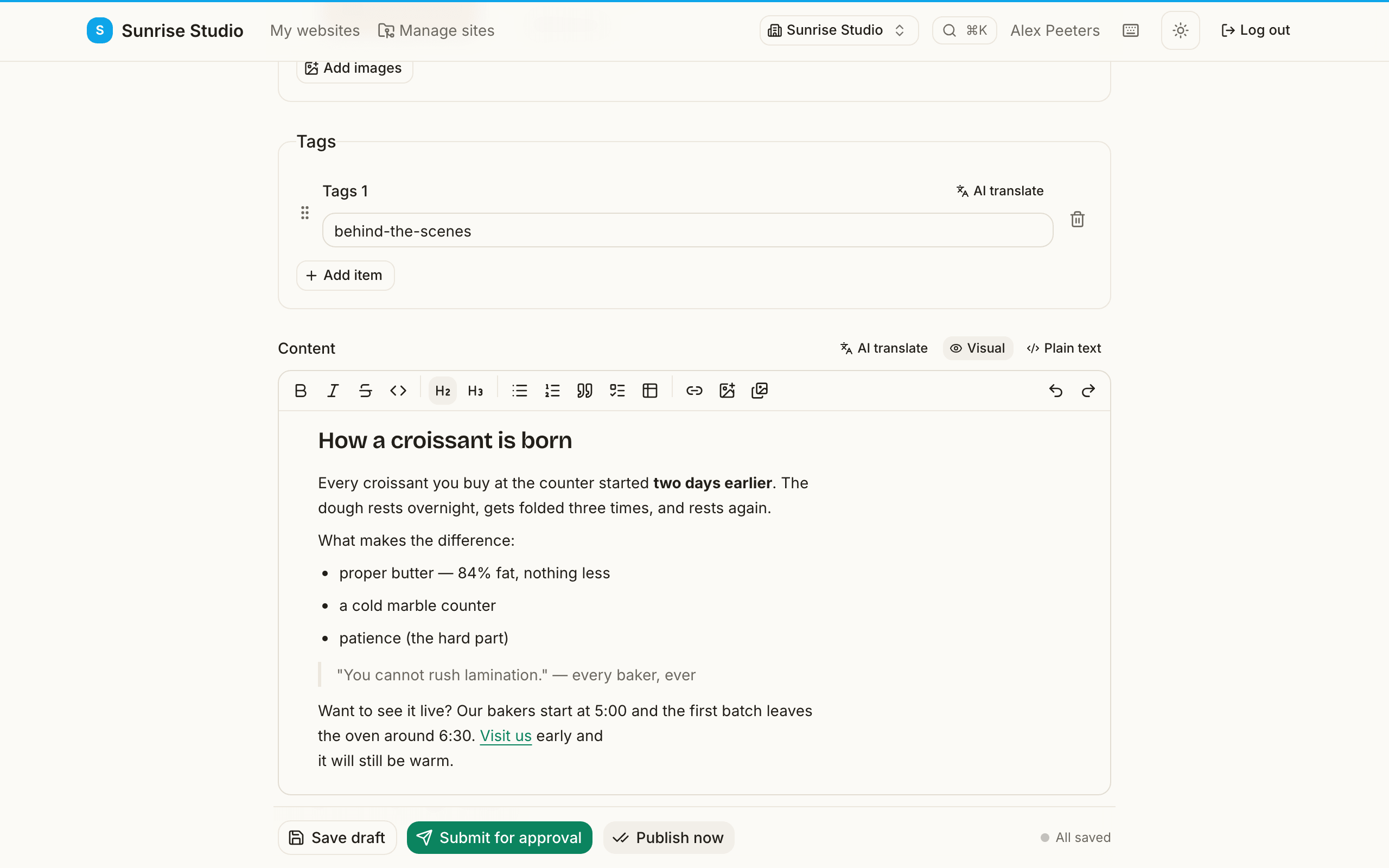
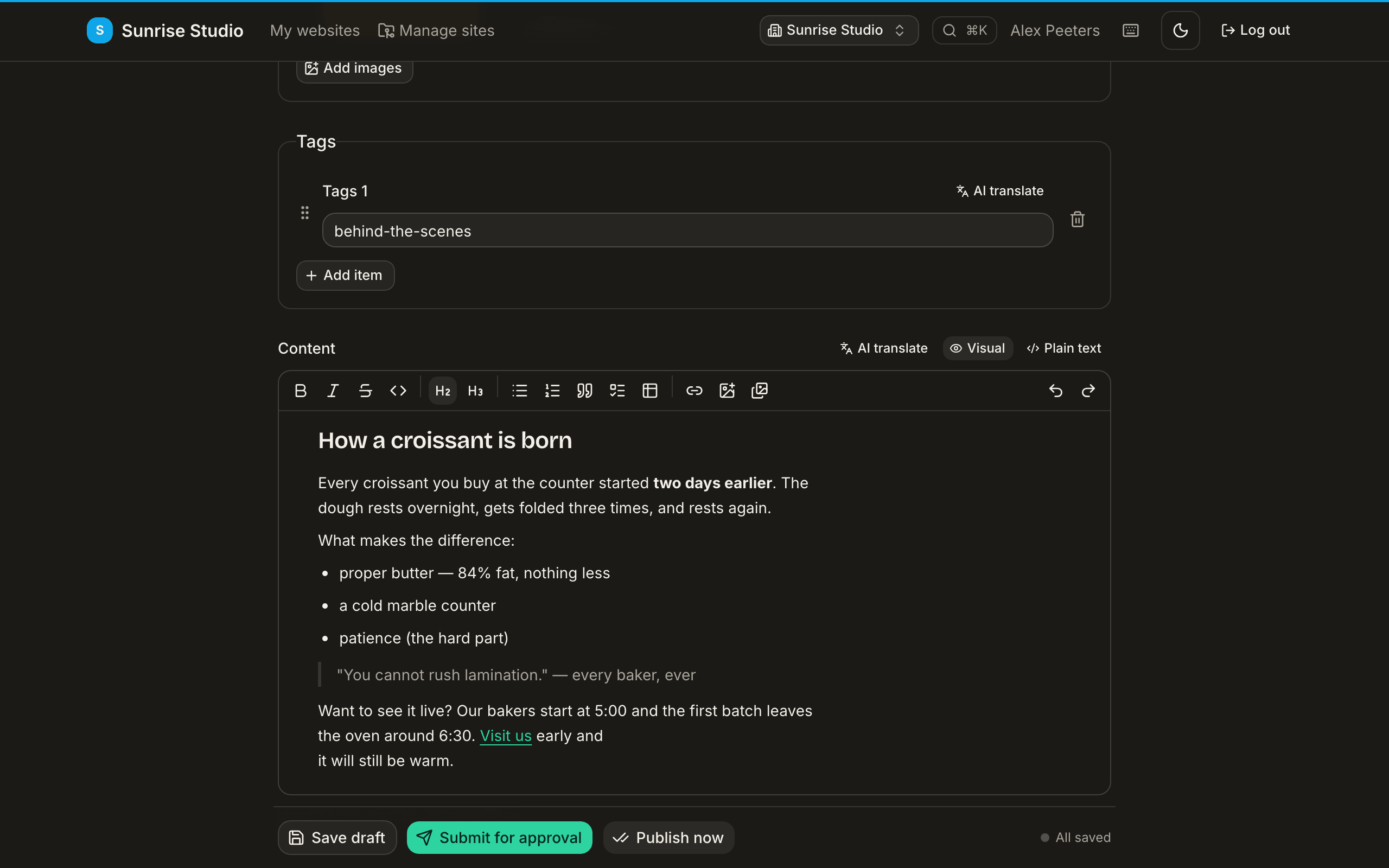
Type as you would anywhere. Use the toolbar at the top for bold, italic, strikethrough, inline code, headings, lists, quotes, tables and links. An empty field shows a friendly hint so you always know where to start.
The “/” slash menu
On a new, empty line, type / to open the block menu. Each block has an icon so you can spot it quickly:
- Heading and Subheading — section titles (H2 and H3).
- List and Numbered list — bulleted or ordered points.
- Task list — checkable to-do items.
- Quote, Table, Code block and Divider.
Keep typing after the “/” to filter (for example /table), then press Enter or click to insert.
Reordering blocks
Hover over any paragraph, heading, list, quote, table or code block and a grip handle (“Drag to reorder”) appears in the left margin. Drag it to move the whole block — a line shows where it will land. Prefer the keyboard? Put your cursor in the block and press Alt + ↑/↓to nudge it up or down. Either way it's one action: a single undo puts the block right back.
The floating toolbar
Select some text and a small toolbar appears right next to your selection for quick bold, italic, strikethrough and link — handy when you don't want to reach for the top bar.
Adding a link
- Select the words you want to turn into a link.
- Click the link button (in the floating or top toolbar), or simply paste a URL while the text is selected — PullPress turns the selection into a link instead of replacing it.
- If your site URL is set, you'll also get suggestions for existing pages on your own site as you type, so internal links stay correct.
Pasting from Word or Google Docs
Paste away — PullPress cleans up the messy formatting that word processors add (stray styles, fonts, comments) and keeps only what maps to clean Markdown: headings, lists, bold/italic, links and so on.
Plain-text mode
Some content the visual editor can't safely show — raw HTML, shortcodes, or unusual Markdown. In that case the field opens in plain-text mode so nothing breaks. You can also switch to it yourself with the Plain text button to tweak the raw Markdown, then switch back to Visual.
In rare cases a page's settings block (the part between ---, +++ or { } at the top of the file) contains an error. The editor then refuses to open the page instead of guessing: nothing is changed or damaged, and the message tells you to ask whoever maintains the site to fix the file first.
Live stats
Under a text field you'll see live word count, reading time and character count — a quick gauge while you write, with no need to leave the editor.
Next: add images & media →